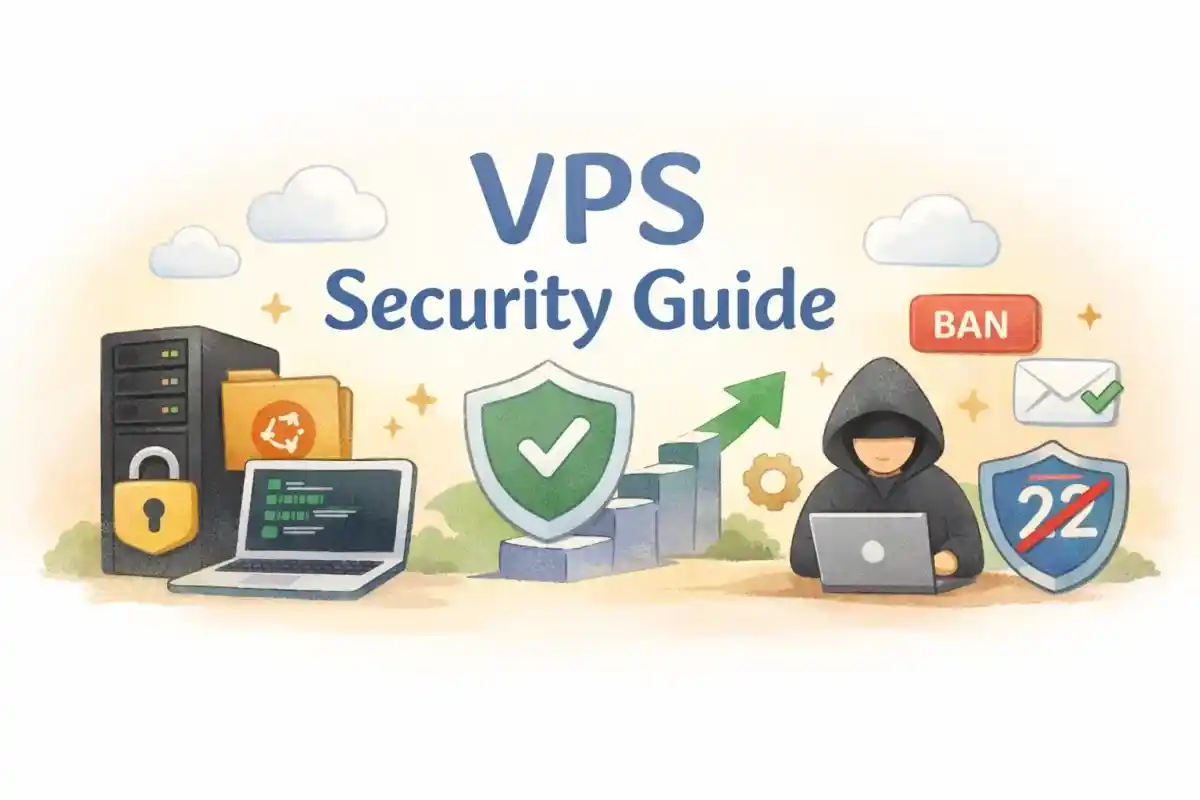
When you deploy a new Virtual Private Server (VPS), security hardening should always be your top priority—well before installing web servers, databases, or applications.
Port 22 is continuously scanned by automated botnets across the entire IPv4 space. A fresh, unhardened Linux server running default configurations can face thousands of brute-force login attempts within hours. Manually configuring SSH settings, creating non-root users, setting up firewalls, and tuning Fail2ban used to take 30+ minutes per server.
With the open-source vps-security-hardening script, you can automatically execute a complete 7-layer defense protocol remotely using a single CLI command.
7 Automated Layers of Security Defense
The script executes via SSH and automatically applies, configures, and verifies the following security controls:
- SSH Connectivity Check & OS System Updates: Tests SSH responsiveness, updates system package indexes, and installs critical security patches.
- Dedicated Sudo User Creation: Sets up a new non-root user with
sudoprivileges and disables direct root login. - SSH Key Enforcement & Password Disabling: Enforces public-key authentication while setting
PasswordAuthentication noto block password-based SSH access. - Custom SSH Port Migration: Changes default port 22 to a custom high-range port, evading automated mass scanners.
- Fail2ban Brute-Force Protection: Installs Fail2ban and configures automated jail rules to ban malicious IP addresses after failed login attempts.
- UFW Firewall Configuration: Enables Uncomplicated Firewall (UFW), restricts incoming traffic, allows the new custom SSH port, and purges rule access on port 22.
- Docker Firewall Bypass Patch: Reconfigures Docker network rules to prevent Docker containers from overriding UFW iptables rules.
Prerequisites & One-Command Execution
1. Prerequisites
- Cloud Console Firewall Adjustment: Log into your VPS provider’s control panel (e.g., AWS, DigitalOcean, Linode, ConoHa) and allow inbound traffic on your chosen custom SSH port.
- Local
sshpassInstallation: Installsshpasson your local machine to handle the initial automated password handshake.- macOS:
brew install sshpass - Ubuntu/Debian:
sudo apt install sshpass
- macOS:
2. Execution Command
Run the following command from your local terminal, replacing the placeholder arguments with your target server details:
Bash
./scripts/harden-vps.sh \
  --ip <VPS_IP> \
  --root-pass <ROOT_PASSWORD> \
  --user <NEW_USER> \
  --user-pass <NEW_USER_PASSWORD> \
  --port <SSH_PORT>
License: MIT License
Supported OS: Debian / Ubuntu Distributions