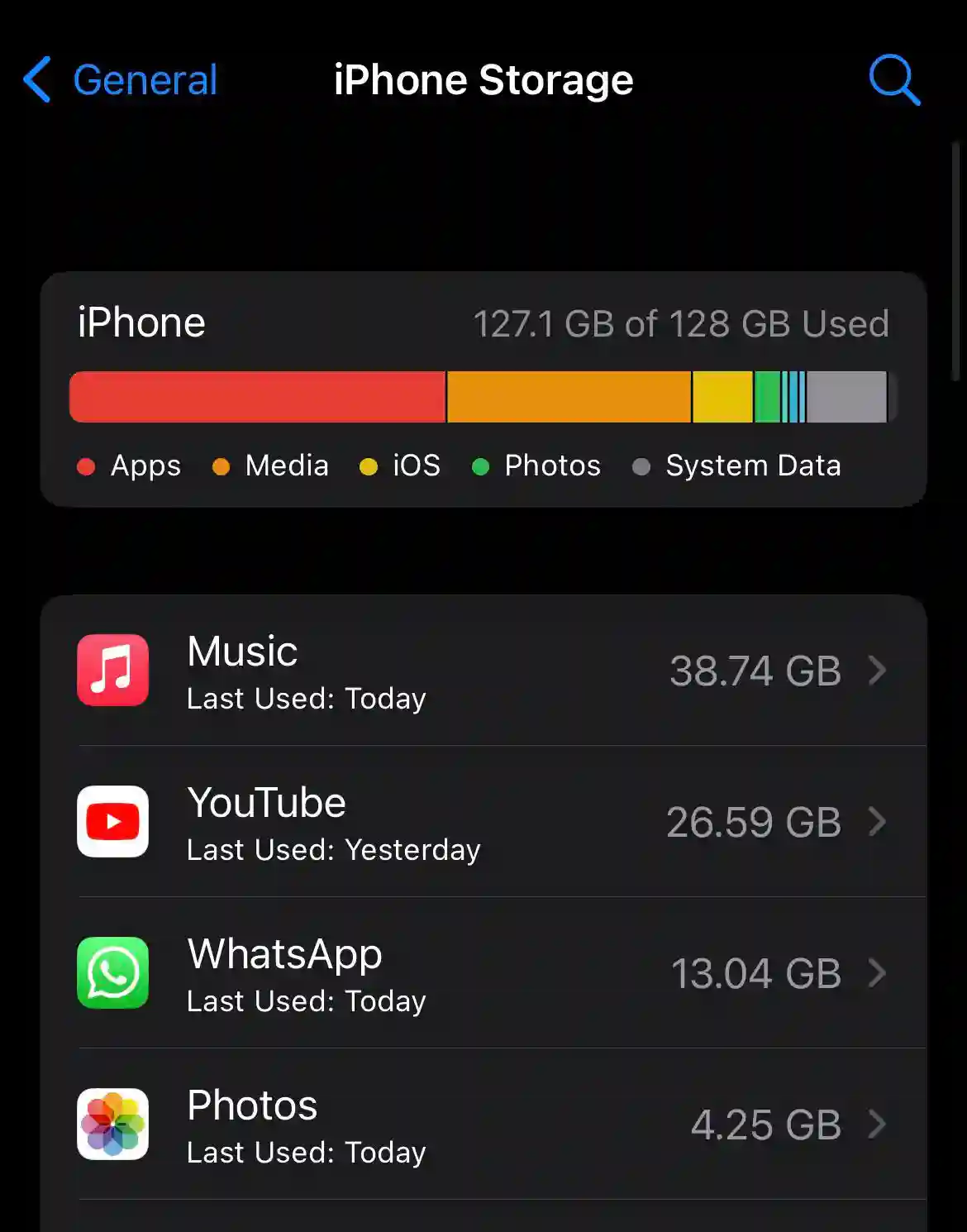
Your iPhone storage is being eaten up by hidden cache, duplicated files, and unused app data. You don’t need to delete your precious photos or essential apps to reclaim space.
Follow these 8 actionable steps to free up 30GB or more of storage in under 5 minutes:
1️⃣ Run a Storage Audit
Before deleting anything, identify what is actually consuming your storage.
- Action: Go to
Settings>General>iPhone Storage. - Result: You will see an exact breakdown of apps sorted by size, revealing hidden storage hogs.
2️⃣ Enable iCloud Photo Optimization
High-resolution photos and 4K videos eat up tens of gigabytes unnecessarily.
- Action: Go to
Settings>[Your Name]>iCloud>Photos> select Optimize iPhone Storage. - Result: Full-resolution photos are stored in iCloud while space-saving versions remain on your device.
3️⃣ Merge Duplicate Photos
iOS automatically groups duplicate photos and videos so you can delete clones with one tap.
- Action: Open
Photos> tapAlbums> scroll down toDuplicates> tap Merge All. - Result: Instantly frees up gigabytes without losing a single unique photo.
4️⃣ Purge Safari Cache & Web Data
Your web browser silently accumulates gigabytes of cached images, cookies, and temporary data over time.
- Action: Go to
Settings>Safari> tapClear History and Website Data. - Result: Clears accumulated cache instantly and speeds up browser performance.
5️⃣ Clean Up WhatsApp & Messaging Media
Messaging apps store every video, GIF, and meme sent in group chats directly onto your internal storage.
- Action: Open
WhatsApp>Settings>Storage and Data>Manage Storage. - Result: Review chats sorted by file size and batch-delete large videos and media.
6️⃣ Turn On “Offload Unused Apps”
Remove unused app binaries while keeping all your documents, settings, and personal data intact.
- Action: Go to
Settings>General>iPhone Storage> enable Offload Unused Apps. - Result: Reclaims storage automatically; if you reinstall the app later, your data is restored instantly.
7️⃣ Delete Offline Downloads (Streaming Apps)
Old podcasts, offline Spotify playlists, and watched Netflix or Apple TV episodes remain stored on your device.
- Action: Open individual streaming apps, navigate to their Downloads tab, and delete watched episodes or old audio files.
- Result: Instantly frees up 5GB to 15GB of media storage.
8️⃣ Clean Out the Files App
The Files app accumulates downloaded PDFs, ZIP files, and unzipped media over time.
- Action: Open the
Filesapp > tapOn My iPhone> checkDownloadsand delete unneeded documents. - Result: Removes forgotten downloads taking up valuable internal storage.