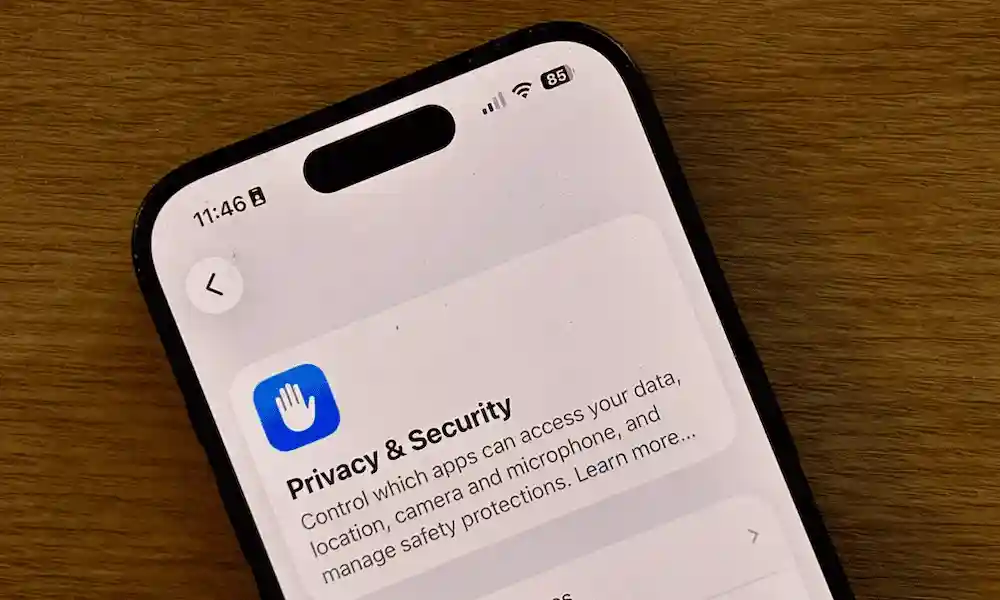
After major iOS updates, certain privacy and background tracking settings can be toggled back on by default. These hidden features drain your battery and quietly collect background data.
Take 3 minutes to change these 5 settings to block silent tracking and significantly improve battery life:
1️⃣ Turn Off “Significant Locations” (Stop Location History Logging)
Even if location services seem restricted, your iPhone quietly logs frequently visited places and stores your location history.
- How to turn off: Go to
Settings>Privacy & Security>Location Services>System Services>Significant Locations> authenticate with passcode/Face ID and toggle to Off.
2️⃣ Clear Photo Caches & Turn Off Shared Albums
Deleted photos stay in your device storage for 30 days under “Recently Deleted”, while Shared Albums continue syncing data in the background.
- How to turn off: Go to
Settings>Photos> turn offShared Albums. Then open thePhotos App>Recently Deletedalbum and manually tap Delete All.
3️⃣ Disable “Find My Network” (Stop Offline Bluetooth Tracking)
With this enabled, your iPhone constantly broadcasts Bluetooth signals to nearby Apple devices—even when Airplane Mode is on or the device is powered off.
- How to turn off: Go to
Settings> tap[Your Name]at the top >Find My>Find My iPhone> toggleFind My networkto Off.
4️⃣ Stop Siri Audio Snippet Collection
By default, Siri can record ambient background audio and dictation snippets for analytics and system improvement.
- How to turn off:
- Go to
Settings>Siri & Search> disableDictation. - Go to
Settings>Privacy & Security>Analytics & Improvements> toggle offImprove Siri & Dictation.
- Go to
5️⃣ Turn Off “Background App Refresh” (Stop Background Data Drain)
Apps you closed hours ago continue to run tasks in the background, consuming mobile data and draining battery life.
- How to turn off: Go to
Settings>General>Background App Refresh> select Off (or disable individually for non-essential apps).